How to Change a QR Code Destination After Printing
Find out what your printed QR code contains, check which address you control, and update its destination or rescue the materials already in use.
The w.here team
8 min read
On this page
- First, find the address inside the actual printed code
- Choose the route that matches the encoded data
- Route one: update a managed redirect
- Route two: keep the page address and change its content
- Route three: redirect an address on your website
- A worked rescue: a café replaces its menu file
- If you cannot control the address, repair the physical materials
- Verify the whole rescue before closing the job
You can change a QR code destination after printing if you can edit the content or routing behind the URL already inside the code. You cannot remotely change the data stored in the printed pattern. The first job is to identify the exact encoded address and find out who controls it.
Do that before ordering new stickers or signing up for another generator. A code described as static may still be recoverable through your website, while a code described as dynamic may be unusable if its account is inaccessible.
First, find the address inside the actual printed code
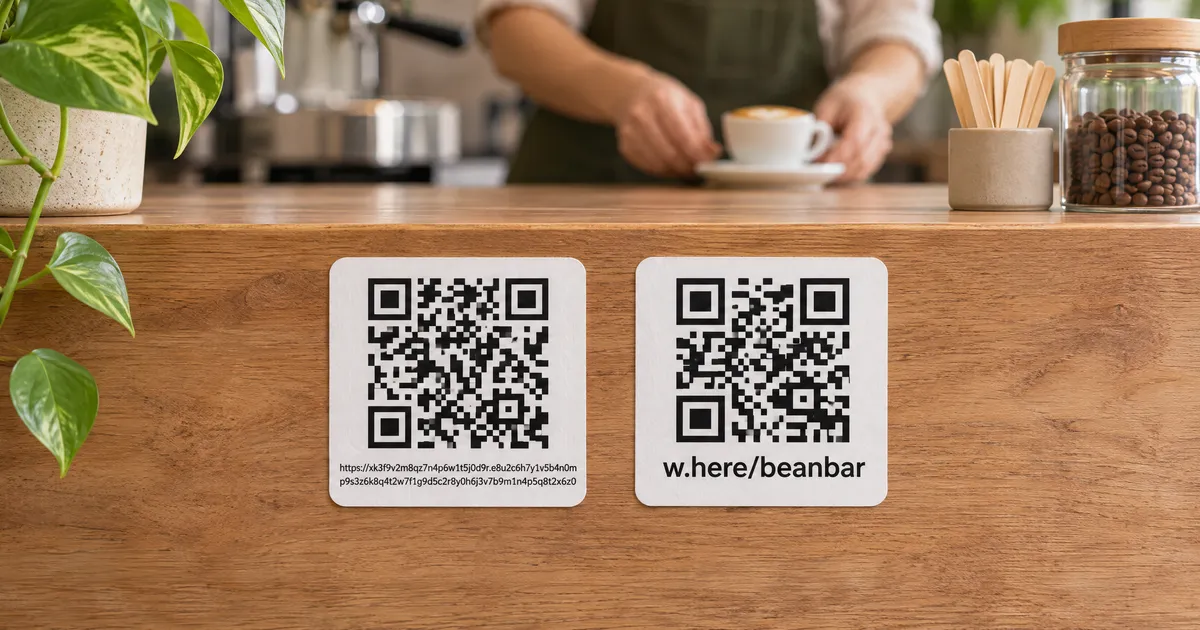
Use a sample from the real print run, not a file that might have been replaced after the artwork went to the printer. Scan it and inspect the result before opening the website where your phone allows that. Record the full address, including its path and any text after a question mark.
On iPhone, the Camera app or Code Scanner recognises the code and offers a link to open. That is a separate action from pointing the camera at it. Apple's scanning instructions show the basic flow. Other phones may display or copy the decoded address differently.
The address you see after the browser finishes loading may be different from the one encoded in the image. A redirect can take the visitor through an intermediate address. If you only record the final destination, you may overlook the account that can fix your problem.
If your scanner does not reveal the original address, use a QR reader that can display decoded text, or ask your designer for the exact payload used to create the print file. Avoid uploading confidential codes to an unfamiliar decoder. For an ordinary public website code, you mainly need a reliable record of the URL rather than a screenshot of the page it currently opens.
Make a simple note with four fields: encoded address, final page reached, account believed to control the encoded address, and the change you need. This prevents several people from troubleshooting different versions of the same code.
Choose the route that matches the encoded data
| The code contains | Your first option | Main limitation |
|---|---|---|
| A managed short address | Change its destination in the existing account | The service and account must still allow changes |
| A URL on your own website | Edit that page or redirect the exact path | You need suitable website or hosting access |
| A hosted profile or file URL | Edit or replace content while preserving its address | The external platform decides what is possible |
| A URL you cannot control | Ask its owner whether they can preserve or redirect it | A new service cannot take control of someone else's URL |
| Contact data or plain text | Replace or cover the physical code | There is no online destination to edit |
The distinction between static and dynamic QR codes is useful here, but your actual control matters more than the label on the original generator.
Route one: update a managed redirect
Sign in to the account that owns the encoded short address. Find the matching link by its exact public URL, not just a friendly name such as “Spring flyer.” Several links can have similar names.
Before changing anything, copy the existing destination into your notes. Open the proposed new destination directly in a private browser window. Confirm that it is public, that it is the correct business or event, and that it does not rely on your logged-in session. A preview page that works for you may ask customers to sign in.
Paste the complete new HTTPS address into the service's destination field and save or publish according to its workflow. Then scan the original physical code again. Check where the browser finishes, and complete the useful part of the journey: open the menu, view appointment times, or reach the enquiry instructions.
If the old destination still appears, try a fresh browser session and another device before repeatedly editing the setting. Redirect and browser caching can complicate a test. Check the service's own guidance if the published setting and live behaviour disagree.
For w.here, a published address can use an HTTPS redirect, and the destination can be changed while the same public address remains in the code. Keeping it available depends on an active subscription and service availability.
Route two: keep the page address and change its content
If the code already points to a page you edit, changing the page may be the simplest fix. A restaurant can replace menu information at its existing menu address. A consultant can update a contact number. An event organiser can replace registration details with arrival information when sales close.
Keep the page's public URL unchanged. Renaming a page title is often harmless, but changing a URL field or moving the page to another folder may change its address. Check your publishing tool rather than assuming these are the same action.
For a linked PDF, there are two possibilities. If the code opens a web page that contains a PDF button, update the button. If the code points directly to the PDF file, you need to replace the file at the exact same URL or arrange a redirect from that URL. Uploading a new file with a new name does not update the old code.
After publishing, open the encoded URL in a fresh session. Make sure the new information appears and that the old version has not remained linked elsewhere on the page. A clear change on the homepage is no help if the printed code opens a forgotten subpage.
Route three: redirect an address on your website
If you control the old website address, ask your website administrator or use the platform's redirect settings to forward that exact URL to the new page. Ordinary HTTP redirects tell the browser where to go next. The appropriate redirect type depends on whether the move is permanent or temporary; avoid choosing a permanent move casually for a destination you expect to keep changing. MDN's redirect guide describes those distinctions.
Give whoever makes the change both complete addresses and the intended duration. “Redirect the old QR code” is too vague if the site has several campaigns. Specify whether only that path should move or whether the whole old site is being retired.
Keep the old address working. If it sits on a domain you registered, moving your website to a new domain does not remove the need to maintain the old one for existing print. Domain registration needs renewal to preserve use of the name; ICANN warns that expiry can interrupt associated services or lead to losing it. Read ICANN's renewal guidance.
Avoid a chain of unnecessary forwards. Where you control the starting redirect, point it directly to the current destination instead of adding another stop each time the website changes. That makes the route easier to understand and repair later.
A worked rescue: a café replaces its menu file
Here is a hypothetical café with printed table cards. The old code opens a PDF, and the owner has uploaded a corrected menu under a new file name. Customers still see the old prices because the print continues to encode the old file URL.
The owner first records the original URL from a table card. They find that the file is hosted on their own website and ask the person maintaining it whether the original path can be preserved.
One option is to replace the old file at that path. Another is to redirect the old PDF URL to a new menu page. The second choice creates space for opening hours, current menu links, and a contact option. Either can preserve the table cards because the original address remains reachable.
Now change one detail: suppose the PDF was hosted under an account the café no longer controls, and the file service offers no recovery route. Uploading the same file name elsewhere does not help. The old code still contains the old service's address. The café must recover access, get help from that provider, or cover the code with a tested replacement.
This example shows why the rescue begins with address ownership. The visual design of the code has little bearing on whether its web destination is editable.
If you cannot control the address, repair the physical materials
Sometimes a new sticker is the honest solution. Use an opaque label that fully covers the old code, including any visible edges that might confuse a camera. Include the replacement code's own clear margin. Avoid leaving two competing codes beside an unchanged “Scan here” instruction.
Print a small batch first. Check the adhesive on the actual surface, confirm the label does not peel at the corners, and test the finished result under normal lighting. A label that works on a flat proof can behave differently on a curved bottle or glossy window.
Replace nearby text if the purpose has changed. A code labelled “Book a haircut” should not silently open a generic social profile unless that is a temporary fallback clearly explained to customers. The printed promise is part of the customer journey.
Prioritise materials by exposure and replacement cost. A shop window or table card you can reach today is easier to fix than cards already handed out. For distributed cards, update any accessible old page with a clear onward link while planning the next print run. Do not claim to have repaired copies whose encoded address you cannot influence.
Verify the whole rescue before closing the job
Ask another person to test without your instructions. Give them the finished print and let them follow it naturally. Watch where they hesitate. A technically correct redirect can still be confusing if the new destination looks unrelated to the printed business name.
Use this final check:
- The original printed code resolves to the intended public address.
- The destination opens without the owner's login.
- The page explains what the printed material promised.
- Its main button, file, or contact action works.
- A second device and a different connection give a usable result.
- The previous destination and recovery details are recorded.
- Someone owns the account and the next maintenance check.
If the camera never recognises the code, you have a different problem from destination editing. Use the QR code troubleshooting guide to separate a print failure from a website failure. For your next print order, test the exact public address and decide who will keep it working before the design becomes permanent ink.