QR Code Not Scanning? Find and Fix the Actual Problem
Separate camera recognition problems from broken links, then check printing, phone settings, redirects, and page access in a practical order.
The w.here team
8 min read
On this page
- Start with this decision table
- If the camera offers no result, check the phone first
- Compare the original image with the physical print
- Test the placement as well as the artwork
- If the result is wrong, inspect the payload
- If the URL is correct but will not load, test it directly
- Check what happens after the page opens
- A worked example: two failures on the same table card
- Keep a short troubleshooting record
If a QR code is not scanning, first check whether the camera recognises it at all. No result points you towards the phone, print, or viewing conditions; a recognised link that fails to open points you towards the URL, connection, or website. Fixing the correct stage saves you from reprinting a code whose only problem is a broken page.
Use one physical sample and change one thing at a time. Keep a note of what happens so that you can explain the failure to your printer, website provider, or colleague without starting over.
Start with this decision table
| What you observe | Most useful next check |
|---|---|
| No link or decoded result appears | Compare phone settings, lighting, focus, and the printed symbol |
| A result appears, but it is unexpected | Inspect the exact encoded data and the artwork version |
| The correct link appears but will not load | Open the address directly and check connectivity and availability |
| A page opens with an error or login request | Check publishing, permissions, billing, and the exact path |
| A page opens, but its main action fails | Test the destination button, file, booking service, or contact detail |
| Only some printed copies fail | Compare production quality, damage, finish, and placement |
A camera showing a URL has already done the decoding step. It is still fair for a customer to say the code “doesn't work,” but your investigation should move beyond the image at that point.
If the camera offers no result, check the phone first
Open the phone's normal camera or built-in code scanner and keep the whole square visible. Give it a moment to focus. Move closer or further away slowly rather than pressing the phone against the paper. Wipe a smudged lens and try even lighting without a bright reflection.
Google's Pixel guidance recommends checking camera scan suggestions, keeping the full code in view, holding steady, and avoiding poor lighting or glare. Other Android manufacturers may organise these controls differently. See Google's Pixel scanning and troubleshooting instructions.
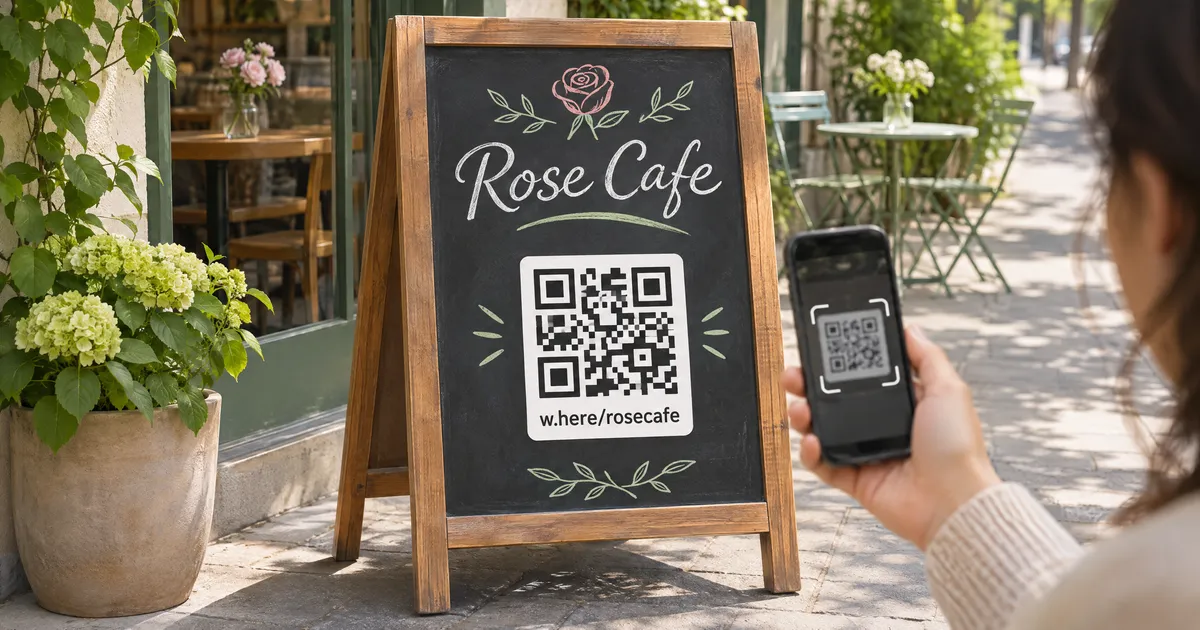
On iPhone, the Camera app and Code Scanner can recognise a QR code and offer its link. Tapping that link opens the content; simply seeing the pattern in the viewfinder is not the final step. Apple documents the supported scanning flow.
Try a known working code on the same phone. Then try your problematic code on another phone. These comparisons help separate a device setting from a print problem. They do not prove that a design is suitable for every customer, but they narrow the next action.
If one phone struggles with every code, investigate that phone's scanner settings or camera before redesigning your print. If several phones struggle with one particular sample, inspect the sample.
Compare the original image with the physical print
Open the original downloaded QR image on another screen and scan it. If that works but the print does not, look closely at what changed during design or production.
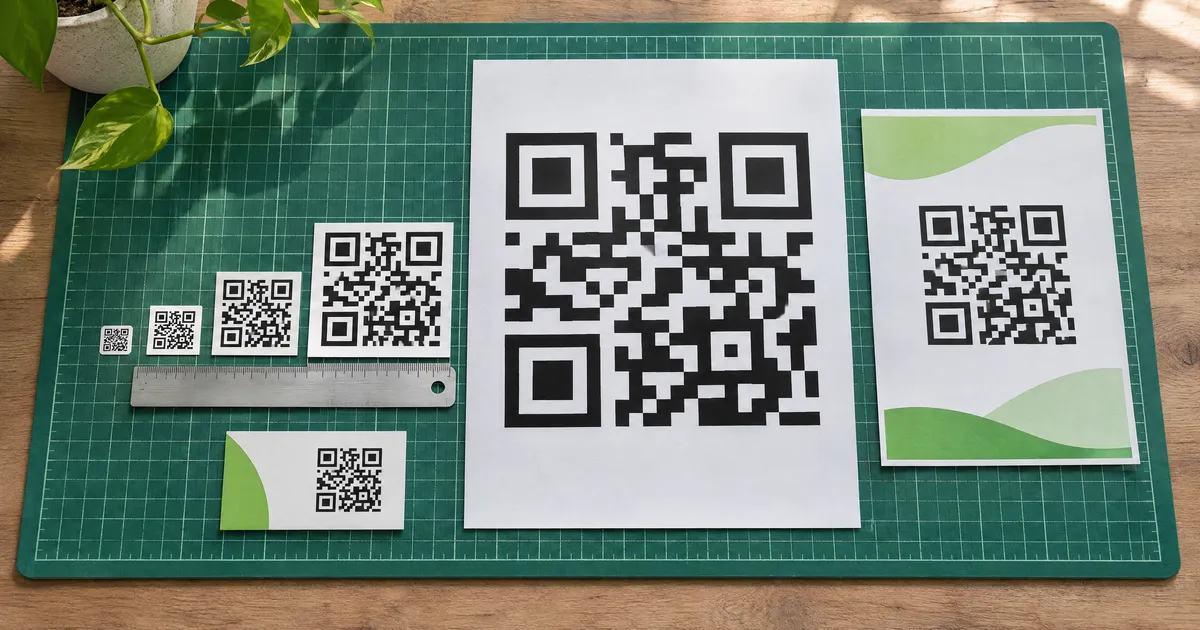
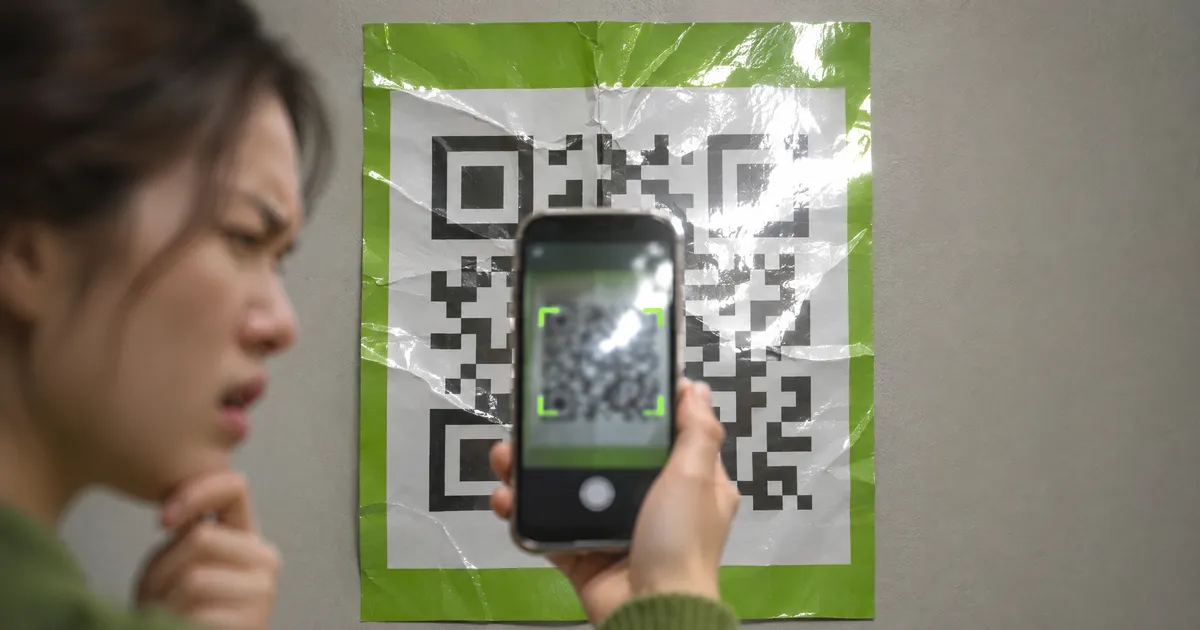
Check whether the code was stretched, cropped, blurred, or covered by a logo. Look for fine squares merging into each other, a pale foreground, textured paper showing through, or a border crowding the pattern. Inspect the actual failing copy, not only the printer's clean proof.
A standard QR Code needs a clear quiet zone four modules wide on all sides. A module is one small square in the pattern. Nearby text or artwork can invade that space even when the code itself is intact. DENSO WAVE describes the required quiet zone.
Compare several copies from the same batch. If only one is damaged, replacing that copy may be enough. If every copy has the same cropped margin or softened pattern, the artwork or production process needs correcting before another order.
Use the QR code print size guide when you need a new proof. It covers density, surface, viewing distance, and an acceptance test without treating one minimum size as reliable everywhere.
Test the placement as well as the artwork
A flat code that works on your desk may fail behind glass, around a narrow bottle, or underneath a reflective laminate. Move the same sample temporarily to a plain, well-lit position. If recognition improves, you have learned something about its surroundings.
For a window sign, inspect reflections from both inside and outside. For a table card, test it while seated where a customer will sit. For a wall poster, begin at a natural viewing distance and check whether moving closer is actually possible.
Do not judge success by the most determined tester. If scanning requires leaning at an awkward angle, blocking a reflection with a hand, or receiving detailed instructions, the placement needs work. Try a matte surface, a flatter mounting area, clearer contrast, or more generous size, then test the changed version.
If you use a QR code on a screen, reduce glare and make sure the whole code is visible. For content someone is already reading on their phone, provide a tappable link as well. Asking the same phone to scan its own screen is an unnecessary obstacle when a normal link can do the job.
If the result is wrong, inspect the payload
The payload is the data stored in the pattern. It might be a URL, contact information, text, or another type of instruction. Record exactly what the scanner decodes, including the complete URL path if there is one.
Common mistakes include generating a code from a draft address, copying a private preview link, leaving out part of a URL, or placing an older QR file into the final artwork. A print can look perfect while encoding the wrong information.
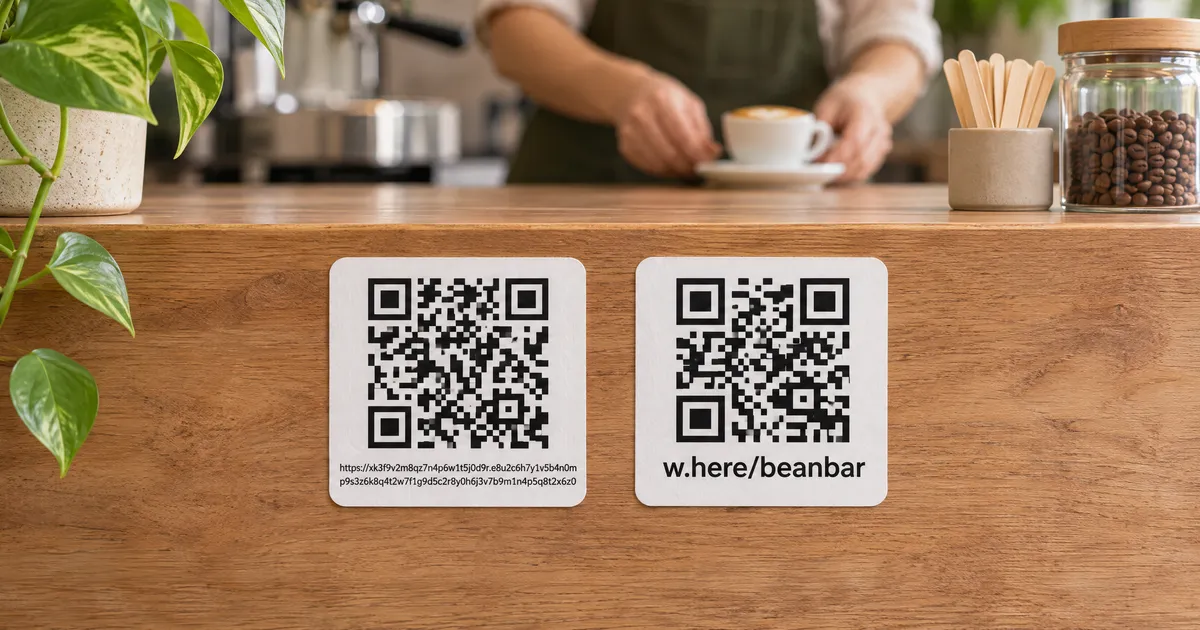
Do not confuse the initial address with the page reached after a redirect. A short address may be intentional. Trace which account manages it before deciding it is wrong. An intermediate address can let its owner change the destination while keeping the printed code.
If the pattern encodes an incorrect address you cannot control, changing the label in your generator account does not automatically change that print. If it encodes a managed address you do control, you may be able to correct its destination. The recovery guide for changing a QR destination after printing explains both situations.
If the URL is correct but will not load, test it directly
Copy or type the exact URL into a browser. Do not substitute the business homepage: the problem may affect only the printed path. If direct opening also fails, you have evidence that the issue is downstream of the QR image.
Check the connection by opening another public website. If appropriate, compare mobile data with Wi-Fi. A venue network might need a sign-in step before it permits ordinary browsing. Conversely, a weak mobile signal may make a healthy page appear unavailable.
Then inspect the message you receive. A missing-page response suggests a path or publishing problem. A sign-in screen suggests access permissions or a private destination. A subscription notice points towards the account serving the encoded address. A browser security warning needs investigation by the site owner; instructing customers to bypass it is not a useful repair.
If you manage a redirect, open its final destination directly too. That tells you whether the short address is failing or forwarding to a broken page. Avoid changing several destinations at once: preserve the previous setting so you can understand or reverse your own edits.
Check what happens after the page opens
Sometimes the QR code and website both work, but the useful action is broken. The menu download may point to a deleted file. A booking button may lead to an old provider. A phone button may contain an outdated number.
Walk through the full task while signed out of the owner's account. For a menu, open the current menu and read enough to confirm it is the intended version. For a contact page, test the visible email or telephone action without sending an unwanted message or call. For a booking link, reach the appropriate service and availability screen.
Check the page on a phone, not only a desktop monitor. A button hidden below an oversized image or a document that is awkward to read can produce a failed customer experience without a technical error. For a café, check that the menu opens directly and that item names, descriptions and prices are readable on a phone.
A worked example: two failures on the same table card
Imagine a hypothetical café receiving complaints that its new table cards do not work. A staff member scans one at the counter and reaches the menu, so they initially assume customers are using their phones incorrectly.
Testing at the tables reveals the first problem: a glossy cover reflects the overhead lights, making recognition unreliable from seated positions. Moving the card away from the reflection helps. The café tests a matte version rather than ordering another identical batch.
The second problem appears on a different phone. The code is recognised immediately, but the menu requires the owner's file-sharing login. The staff member's phone had already been signed in, masking the issue. The café changes the file's supported public-sharing arrangement or publishes the menu on a public page, then retests while signed out.
Both complaints sounded like “the QR code won't scan.” One concerned the physical presentation; the other concerned access after decoding. The café records both fixes and tests a finished card at each table area before accepting the replacement batch.
This is an illustrative investigation, not a report of a product test. Its useful lesson is to reproduce the customer's circumstances before drawing conclusions from a single successful scan.
Keep a short troubleshooting record
When you need help, send a clear description rather than only “QR broken.” Record the print version, encoded URL, phone model if known, location, connection used, exact error, and whether another phone or the original digital image works. Share public information only; an account password is not needed to describe a failing code.
Close the issue with a small verification checklist:
- The finished print is recognised from a normal position.
- The encoded address is the intended one.
- The destination opens without an owner's login.
- The main customer action works on a phone.
- Another person has repeated the journey without coaching.
- The approved artwork and current destination are saved for future reference.
Keep a readable address or contact route alongside the code wherever practical. Then schedule another check after a website move, destination change, major print revision, or visible wear. A repair is most useful when the next person can understand what was changed and keep it working.