How to Make a Digital Business Card Without an App
Create a browser-based business card, add useful contact details, share it by link or QR code, and test how visitors save your information.
The w.here team
8 min read
On this page
- Decide what the card needs to do
- Gather public contact details before choosing a layout
- Choose an address you can keep using
- Build a page that continues the introduction
- Add a contact-saving option with accurate expectations
- Share a link when the conversation is already digital
- A worked example: a photographer after a local event
- Test the complete handover before sharing widely
- Keep the page and saved contact file in step
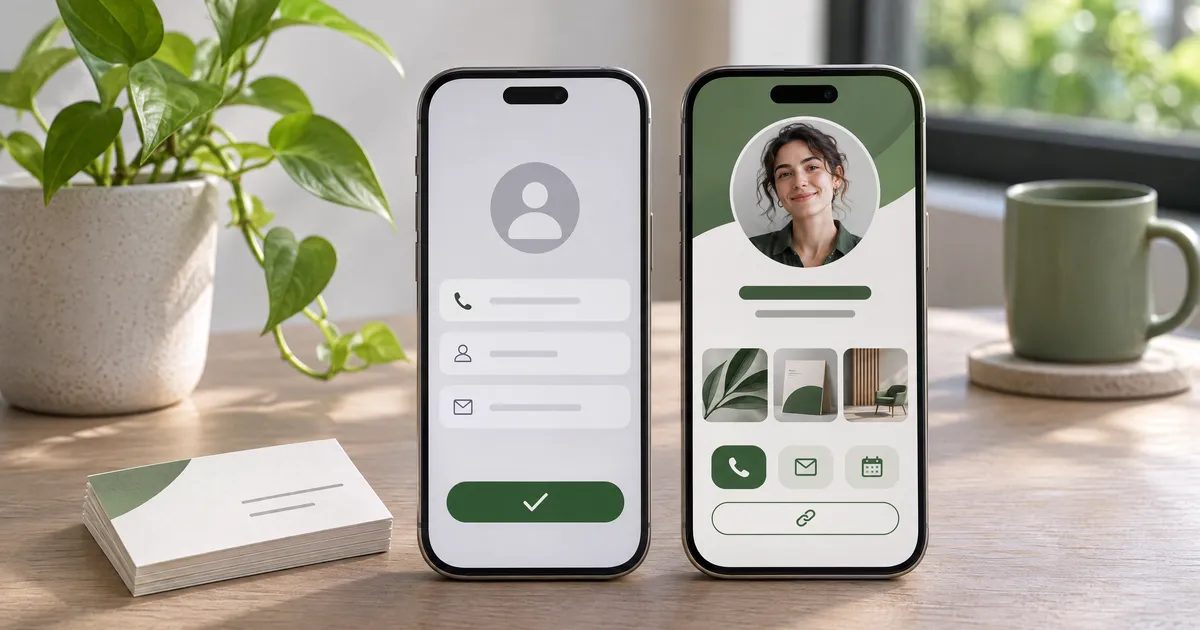
You can make a digital business card without an app by publishing a small public web page with your name, role, contact details, and a useful next action. Share its address directly or put that address in a QR code. Visitors use a browser, and an optional contact-file download can help them save your details in their existing contacts app.
The best starting point is the conversation you want the card to continue. Someone who has just met you should be able to recognise you, understand what you do, and choose how to follow up without creating an account.
Decide what the card needs to do
Write one sentence describing the card's main job. For a freelance designer, it might be “Help someone I met see relevant work and email me about a project.” For a local electrician, it might be “Help a customer recognise the business and call about a suitable job.”
That sentence gives you a reason to include or omit each item. A personal card does not need every social account you have ever opened. A business card for an individual does not need to reproduce the entire company website.
Choose a primary action that matches your availability and process. If you prefer enquiries by email, make that route clear. If you already use a booking service, link to the correct booking page and tell visitors what they will book. Do not imply that a contact page itself handles appointments or payments unless your selected tool actually provides those features.
The card can still offer secondary routes. A visitor may want to save your details now and contact you later. Another may want proof of your work before reaching out. Give those choices useful labels without making every button equally prominent.
Gather public contact details before choosing a layout
Prepare the information you are comfortable publishing:
- Your name and the name people know your business by.
- A clear role or service description.
- One preferred work email address or telephone number.
- Your location or service area where it helps someone decide whether to contact you.
- A recognisable photo or logo, if you have one you can use.
- A relevant portfolio, booking, or business-profile link.
- The details you want included in a downloadable contact file.
Use a work contact route if you want to keep personal and public communication separate. A home-based professional can often describe a service area without publishing a home address. Only add an exact address when it serves a real visitor need and you intend it to be public.
Check the details against the accounts you actually monitor. A polished card pointing to an abandoned inbox creates work for the person trying to reach you. If you need help prioritising the content, use the guide to what to put on a digital business card.
Choose an address you can keep using
A digital card is easier to maintain when its public address remains stable while its content changes. That can be a page on a website you control or an address supplied by a hosted page service.
Check the practical differences. Who controls the account? What happens if you stop paying? Can you edit the page without changing the URL? If you later move to another website, can the original address remain online or redirect visitors? A platform address and a separately registered domain have different ownership and portability arrangements.
With w.here, the address is a yearly subscription on the service; a template page can include contact details and a Save contact download. Keep the subscription active and preserve account access if you plan to keep distributing the address.
Do not print a private preview link. Preview is useful for checking the design, but the QR code and shared messages must use the final public address. Open it while signed out before treating it as ready.
Build a page that continues the introduction
Put your name and useful description near the start. “Maya Chen — brand designer for independent cafés” tells a new contact more than “Creative. Curious. Different.” Use language you would say when introducing yourself.
Place the main next action where it is easy to find. Labels such as “Email me about a project,” “View recent work,” or “Book a consultation” explain what happens. If a button leaves your page for another service, the destination should match the promise.
Add just enough context to make follow-up easier. A short sentence about the kind of work you accept can help someone remember why they took your card. A small selection of relevant work can support that description; a sprawling gallery may bury the contact details. When showing work is central to the introduction, choose a few relevant examples and explain your role in each one.
Check the page at a comfortable phone reading size. Long paragraphs, tiny text, and closely packed links make a brief follow-up task unnecessarily demanding. Give visitors room to read and tap, and use text labels even when you include familiar icons.
Add a contact-saving option with accurate expectations
A vCard is a standard format for exchanging contact information, including fields such as names, telephone numbers, and email addresses. It is commonly delivered in a file ending in .vcf. The IETF vCard specification defines the format.
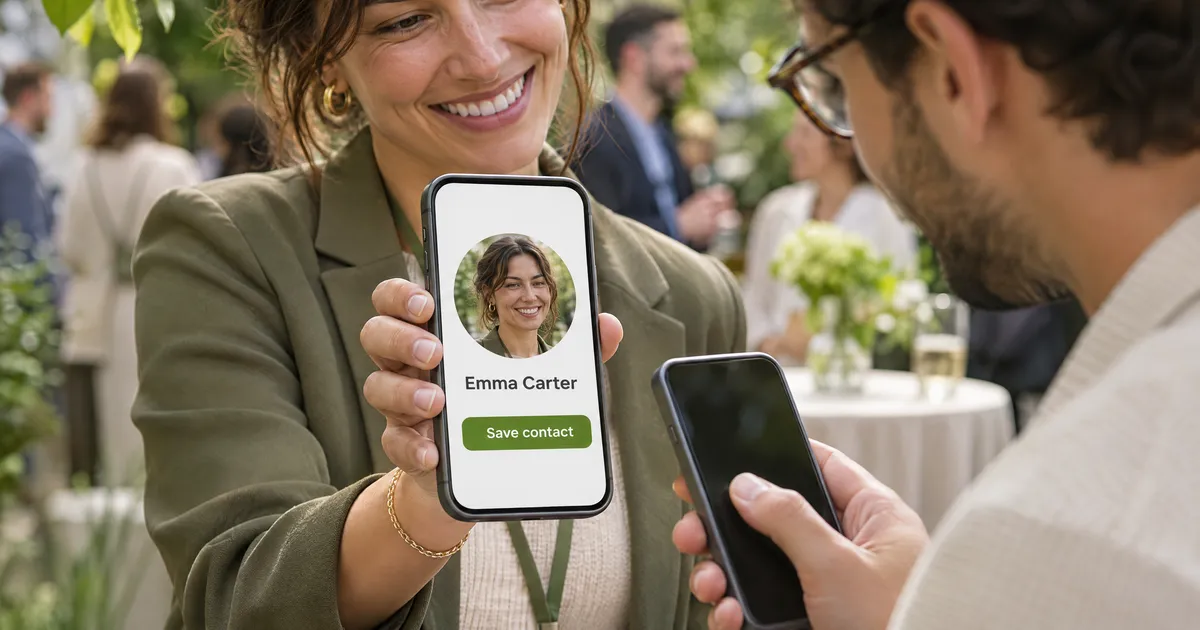
A Save contact button can provide that file. What happens next depends on the device and the browser: the visitor may see a contact preview, download a file, choose an account, or confirm an import. Test the actual flow instead of promising that one tap silently adds you to every address book.
In your page builder, enable the contact-download option and fill in its contact fields. Do not assume that details displayed elsewhere on the page automatically appear in the download. In w.here's template editor, open Save contact, select “Show a Save contact button”, and enter the public details you want to share. Publish, then download a fresh contact file and inspect the imported fields.
For example, Google's Contacts instructions on Android include importing a saved VCF through the Contacts app and choosing the destination account when needed. Google's import guide is a useful fallback when a downloaded file does not open directly.
Keep the contact file consistent with the visible page. Check the name order, business name, email, telephone country code, and website field after import. A successful file download is not enough if the phone number ended up in a note or the business name replaced the person's name unexpectedly.
An ordinary imported contact is a copy of the details at that moment. Editing your page later does not automatically update the copy already saved on another person's phone. Include your stable page address in the contact where possible so they have a route to current information.
Share a link when the conversation is already digital
In an email, message, or social profile, share the clickable page address. A QR image can be useful on a presentation slide or something another person sees on a separate screen, but a normal link is usually simpler within a message on their own phone.
Add a sentence that explains why you are sending it. “Here are my details and the two café projects we discussed” provides context that a bare link lacks. Make sure the page actually contains the material you promised.
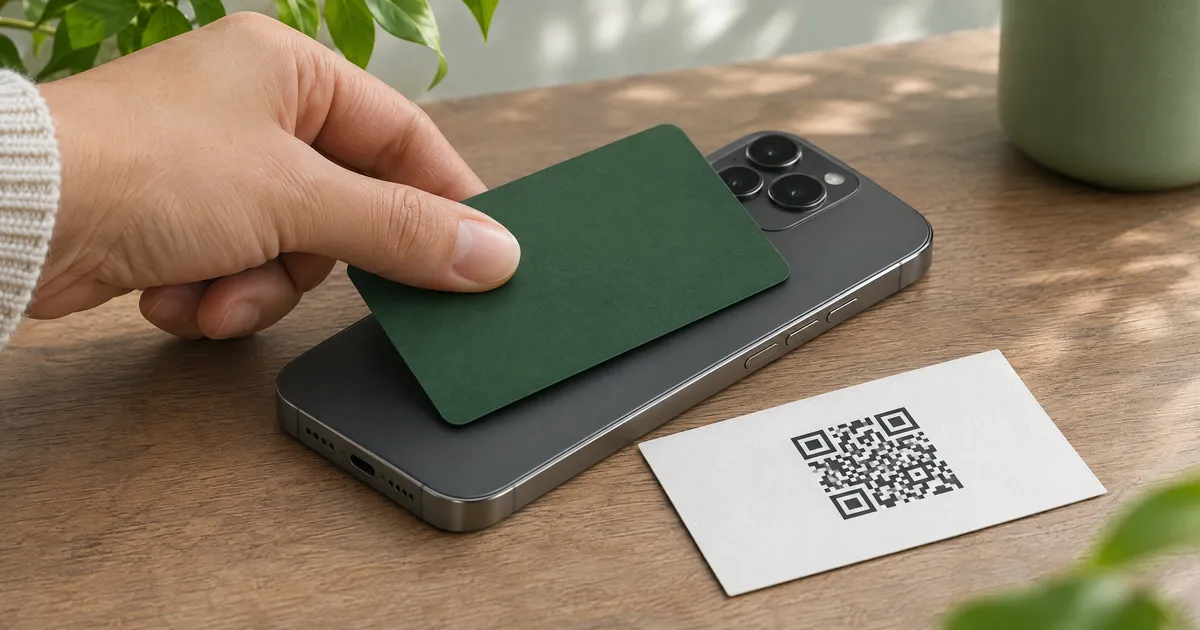
For in-person sharing, display the QR code large enough to scan comfortably from your screen. Keep a saved copy available so you do not have to navigate through account settings during a conversation. Also know the readable address, in case the other person prefers to type it or save it for later.
Apple supports scanning website QR codes through the iPhone Camera app or Code Scanner, then opening the offered link. Apple's QR instructions describe that flow. Compatibility and menu names vary across other phones, so always offer the address as an alternative.
A worked example: a photographer after a local event
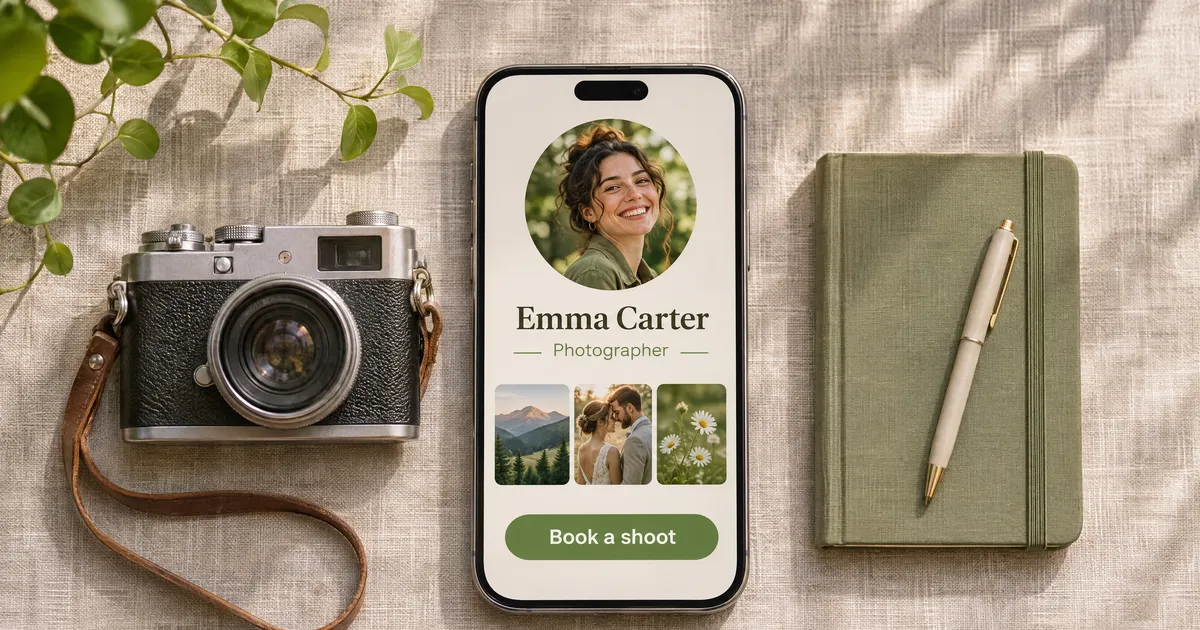
Consider a hypothetical photographer, Alex, who meets café owners at a community event. Alex wants follow-up enquiries about product and interior photography, not unrelated portrait bookings.
The page starts with Alex's name, a short service description, and the local area covered. “View café photography” opens a small relevant portfolio. “Email Alex about a shoot” opens the preferred contact route. Save contact includes the public work email, telephone number, business name, and card-page address.
Alex leaves out an inactive video channel and a personal social profile because neither helps the intended visitor. The page includes a short note asking enquiries to mention the location, intended images, and approximate timing. That gives customers a starting point without turning the card into a lengthy intake form.
Before the event, Alex asks a colleague to open the page while signed out, save the contact, and find a relevant project. The colleague imports the contact and checks the fields. Alex also prints a small proof card with the name, service description, public address, and QR code.
After the event, Alex shares the same link in individual follow-up messages. When the portfolio changes, the page can change while the shared address stays the same. People who already imported the contact still have the earlier saved details, so a changed telephone number would need separate communication to important existing contacts.
Test the complete handover before sharing widely
Use a real phone and ask someone unfamiliar with the setup to try it. Check these steps in order:
- The public link opens without signing in or installing the creator's app.
- Your name, role, and reason to follow up are immediately understandable.
- The main button reaches the intended public destination.
- Email and telephone details are correct and readable.
- Save contact produces a usable file or import flow on the tested device.
- The imported contact contains the intended fields.
- The printed QR proof opens the same public page.
Record which devices you tried and avoid claiming universal compatibility from a single test. You can still provide a good fallback by leaving contact details visible and offering the page address in text.
Keep the page and saved contact file in step
Review the card when your role, phone number, email, availability, or main portfolio link changes. If the page editor generates the contact file automatically, test a fresh download after the edit. If you upload a separate file, update that file as part of the same job.
Keep the account's renewal and recovery details accessible to the person responsible. Before leaving a provider, decide how you will handle addresses already printed or shared. A stable address is only useful while you can keep it serving the right information.
If you are deciding whether to put contact data directly into the QR pattern instead, read vCard QR codes versus digital business cards. For a browser-based card, your next step is simpler: publish one clear introduction, test the complete contact-saving journey, and share the public link in your next relevant conversation.