Create a Restaurant QR Code Menu You Can Update
Create an updatable restaurant QR code menu with a stable address, readable dishes and prices, tested table signs and a practical staff update routine.
The w.here team
8 min read
On this page
- Decide what should happen after the scan
- Choose an address you can keep using
- Prepare the menu before designing the sign
- Build a page that works at the table
- Make a table sign that tells people what to do
- Test scanning and reading as two separate steps
- A worked example: a café with breakfast and lunch
- Give updates a small, repeatable checklist
- Keep an alternative available
An updatable restaurant QR code menu needs a stable web address, a menu you can edit and a printed code that points to that address. When dishes or prices change, update the page or its redirect destination while keeping the encoded address working; you do not rewrite the printed QR image.
The useful part is the operating routine behind it. A menu that scans perfectly but displays yesterday's prices creates a problem for both guests and staff. Build the page, table sign and update process together.
Decide what should happen after the scan
Start with the guest's immediate need. At a table, that is usually reading the available food and drinks. Outside the venue, it might be checking whether lunch is still being served. On a takeaway bag, it might be ordering again.
These are different destinations. A table code labelled “View the menu” should open the menu, not a long list of social profiles. A code labelled “Order takeaway” should lead to the actual ordering service. Keep labels honest so guests know whether they are browsing, ordering or paying.
You can run a perfectly useful QR menu without online ordering. Explain how to order: “Please order at the counter” or “Your server will take your order.” If you use an external ordering provider, make that a separate, clearly named action and check that it opens the correct branch.
Keep the opening simple: venue name, service hours, food and drink categories, then instructions for ordering. A guest should be able to confirm that this is the right venue and begin reading the menu without navigating a promotional homepage.
Choose an address you can keep using
The QR code contains data. For a web menu, that data is normally a URL. Once printed, it continues to contain that same URL, even if you replace every dish on the page.
There are two straightforward arrangements. You can keep the menu at the encoded address and edit its contents. Alternatively, you can use an address you control that redirects to the current menu location. In either case, future changes depend on retaining control of the relevant address and keeping its service available.
A QR code pointing directly to your own website is not automatically unchangeable. If you control that URL, you may be able to replace the content or configure a redirect. The difficulty arises when you print an address you cannot maintain, such as a temporary sharing link or a third-party location that will disappear when you leave a service.
If a publishing or QR service supplies the address, check what happens when its subscription ends or the business changes provider. Confirm whether you can edit the content or redirect destination, and whether the address belongs to your own domain or remains on the provider's domain. A downloaded QR image is not a promise that its destination will stay available indefinitely.
Before printing, record which account controls the address, who can update it and when any subscription renews. Put that information somewhere the business can access if the original staff member leaves.
Prepare the menu before designing the sign
Collect the actual menu content in one working document. Include category names, dish names, descriptions, prices, sizes, add-ons and service times. Resolve ambiguous details with the people responsible for the menu before copying them onto the page.
Use the same name for a dish online and in conversation at the counter. If the kitchen calls something “roast vegetable focaccia”, a more elaborate web-only name makes ordering harder. Short descriptions can explain the ingredients or preparation that help a guest choose; they do not need a story for every item.
Keep the relationship between each item and its price clear. Where there are sizes, place the size labels beside their prices. Explain what an add-on applies to instead of leaving a loose “extra 3” beneath an entire category.
Dietary and allergen information needs the restaurant's own accurate process. Do not let an automated writing tool infer an allergen claim from a dish name or turn an ingredient omission into a safety assurance. Have the responsible staff verify the wording, and give guests a clear way to discuss their requirements with the team. This is an editorial workflow, not a substitute for the business's food-information obligations.
Build a page that works at the table
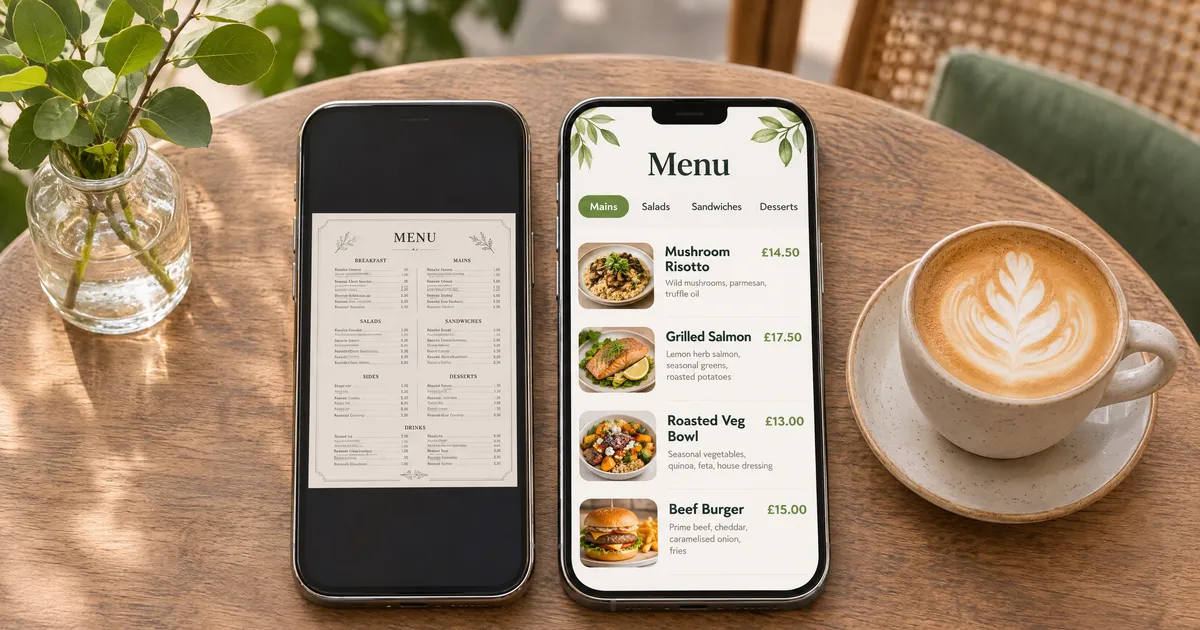
Prefer a readable sequence of categories over a large photograph of the printed menu. A photo may look correct on a laptop but require repeated pinching and panning on a phone. Use real text so dishes and prices can wrap and enlarge.
A practical order is venue name, current service information, food categories, drinks and a short explanation of how to order. If breakfast and lunch have different hours, put those hours at the beginning of their sections. Avoid making guests discover the time restriction after choosing a dish.
For a long menu, category links near the top can help people move to drinks or desserts. Check that they land on the relevant section and do not hide the heading behind a fixed banner. A short menu may not need this extra navigation.
W3C's Reflow guidance explains why ordinary page content should remain readable when narrowed or enlarged without requiring two-direction scrolling. Use that as a reason to test your actual layout, rather than assuming that all web pages are automatically easy to read.
If you already have a carefully prepared PDF, keep it as a labelled download if useful. The PDF versus mobile web menu guide walks through the trade-offs without treating every PDF as inaccessible.
Make a table sign that tells people what to do
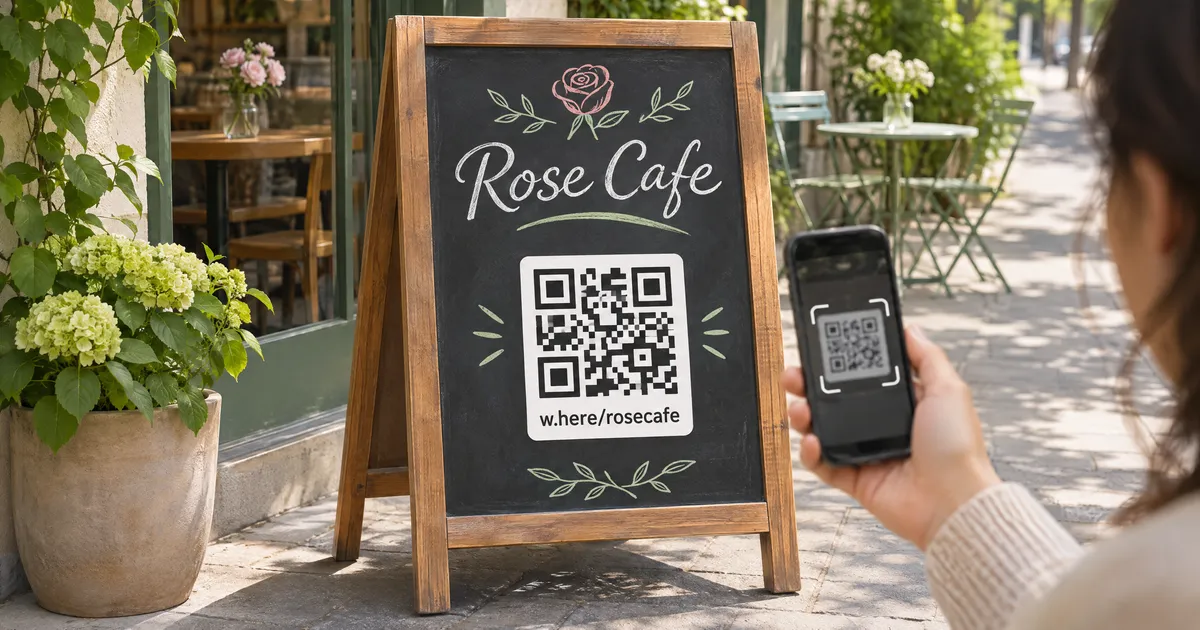
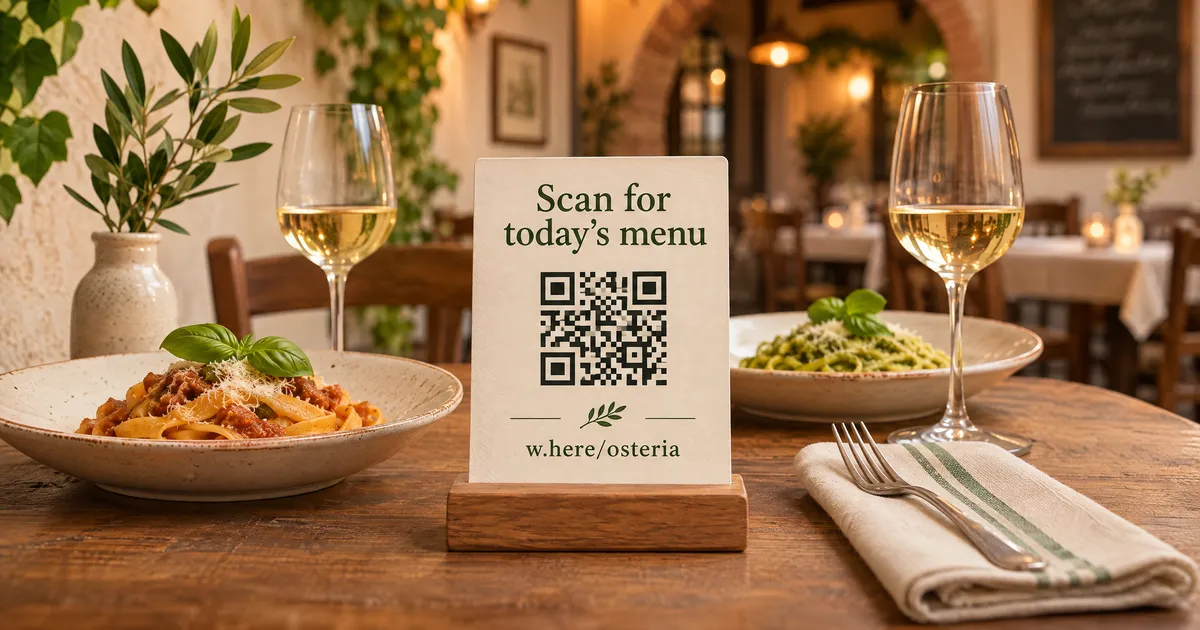
The sign needs the venue identity, a simple instruction and the code. “View today's food and drinks” gives a clearer expectation than “Scan me”. Add the readable web address beneath it so someone can type it or recognise the destination.
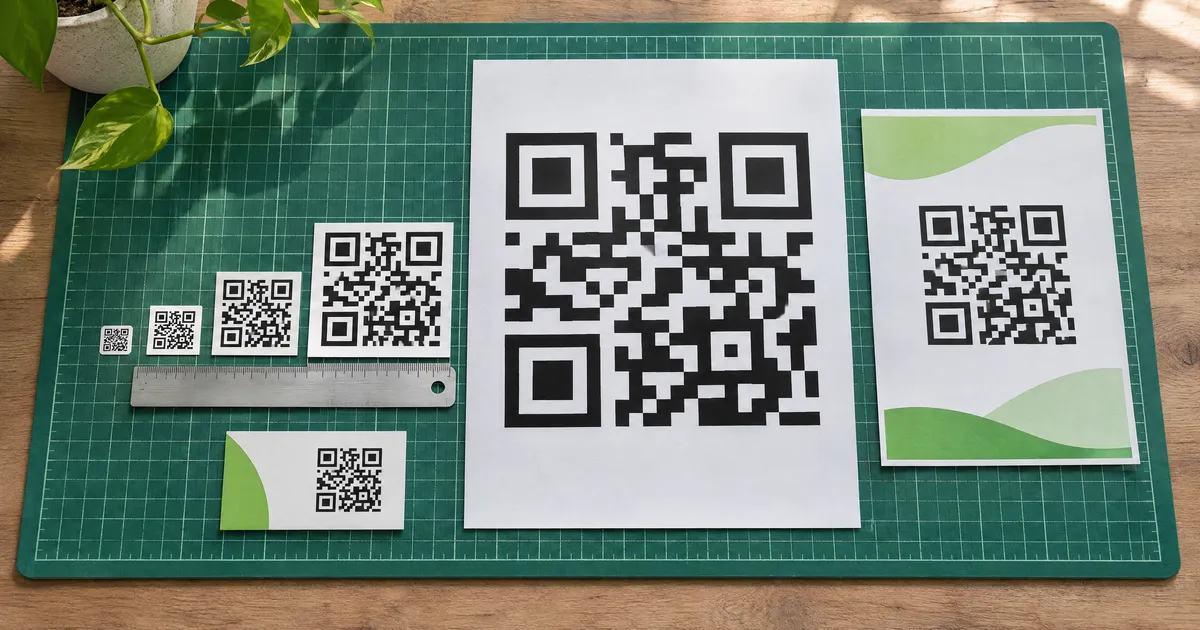
Use a dark code on a light background and preserve the clear space around it. DENSO WAVE, the QR code developer, specifies a quiet zone four modules wide on each side; a module is one of the small squares making up the symbol. Do not crowd that space with a border, caption or illustration. DENSO WAVE's code-area guidance explains the margin.
Choose the printed size by testing the actual sign at the intended distance. Code density, print quality, lighting, surface finish and viewing angle all matter. A measurement that works on a flat counter card is not automatically suitable on a wall across a room. The QR code print size guide gives a practical acceptance process.
Print one sample before ordering a batch. Put it inside the actual holder, beneath the actual lights. Glossy covers can create reflections; curved surfaces can distort the code. Try scanning from where a seated guest will hold a phone, rather than standing over the sign in ideal conditions.
Test scanning and reading as two separate steps
First check whether the camera recognises the code and offers the intended address. Then open that address and inspect what loads. These are different tests: a successful scan does not prove the menu page is available.
On an iPhone, open the Camera app or Code Scanner, frame the code, and tap the detected link. Apple's QR scanning instructions describe this interaction. Other devices may use a different scanning flow.
Test with more than one available phone and, where possible, over mobile data as well as the venue Wi-Fi. Confirm that the menu does not demand a staff login, cloud-storage permission or restaurant-app installation. Check the longest dish name, the smallest price and any external ordering link.
Have someone unfamiliar with the setup locate a specific item and explain how they would order it. Do not coach them through the page. Record the obstacles they encounter and fix those before treating the sign as ready.
A worked example: a café with breakfast and lunch
Consider a hypothetical café, Harbour Table, with breakfast until 11 am, lunch from 11:30 am and drinks throughout its opening hours. It wants one code on every table and needs to change a small specials section frequently.
The page opens with the café name and today's service hours. Breakfast, lunch and drinks each have their own heading. The half-hour gap is stated plainly rather than hidden in a general “all-day café” description. A short specials section sits under the relevant meal category.
The table sign says “View food and drinks — order at the counter” and includes the readable menu address. There is no payment button because the café takes payment at the counter. A separate takeaway link appears lower down with a label that describes the external ordering destination.
The manager owns the page account. The shift lead reports sold-out dishes, and one nominated person updates the menu before the next service. After a change, another staff member refreshes the public page on their phone and checks the changed item against the working menu document.
If a special sells out during a busy period, staff can still tell guests directly while the nominated person updates the page. The digital menu supports the service routine; it does not replace communication between the kitchen, counter and floor.
Give updates a small, repeatable checklist
An update should be complete only when the public menu is correct. Saving a draft or changing the source document is not the same as publishing the change.
Use this sequence whenever the menu changes:
- Confirm the dish, price, availability and effective time with the responsible person.
- Edit the working menu record and the customer-facing page.
- Preview the affected section, including nearby prices and labels.
- Publish the change using the chosen service's workflow.
- Open the printed address on a phone and refresh it.
- Tell the relevant staff what changed and when it takes effect.
- Update any other menu copies that still apply, including printouts or downloads.
A visible “updated” date can be useful if you will maintain it accurately. An old date left untouched may create doubt even when the menu happens to be correct. A quiet internal change log can be more useful for staff than a decorative public timestamp.
Keep an alternative available
Offer a printed menu or staff assistance for guests who cannot or prefer not to scan. A readable address helps someone whose camera is unavailable, but it does not solve a flat battery or poor connectivity. Make the alternative part of normal hospitality rather than something a guest has to argue for.
Check the physical signs during routine opening tasks. Replace damaged prints and investigate any unexpected sticker or changed destination. Keep a spare approved print file and the current menu text so recovery is straightforward if a holder breaks or an online service is unavailable.
Start with one tested table and one complete menu. Once scanning, reading, ordering instructions and staff updates all work together, reproduce the sign for the rest of the venue. The durable part of the setup is the combination of a maintained address and a menu process people actually follow.