PDF Menu vs Mobile Web Menu: Which Should You Use?
Compare a PDF menu and a mobile web menu using the same café example, with practical checks for readability, accessibility, updates and printing.
The w.here team
9 min read
On this page
- Understand what each format preserves
- Compare the same menu, not two different designs
- Readability: follow one dish from name to price
- Accessibility depends on the document's structure
- Updating: count every copy you must maintain
- Loading: compare the actual page and file
- Printing and sharing can justify a PDF
- Keep the printed QR code independent of file changes
- Use this decision checklist before changing formats
In a PDF menu vs mobile web menu decision, choose the format that guests can read easily and your team can maintain accurately. A mobile web page is often a convenient default for table scanning, while a well-prepared PDF can be valuable for printing, downloading or sharing a fixed menu.
Neither file type guarantees a good experience. A web page can contain tiny text and confusing navigation. A PDF can contain structured, accessible text and a logical reading order. Compare your actual menu in each format rather than deciding from the label alone.
Understand what each format preserves
A PDF preserves a designed document. The location of the title, dishes, decorative elements and page breaks normally remains fixed. That is useful when you want the same layout to print consistently or send a complete function menu to someone planning a group booking.
A responsive web menu allows its layout to adapt to the available screen. Text can wrap, sections can stack and the visitor can move through a continuous page. This suits a phone, where there is limited room for several columns of dishes and prices.
The trade-off is not simply appearance against convenience. You can design a web menu carefully, and you can prepare a PDF with phone readers in mind. The important difference is how much layout adaptation the format and the viewer provide in the specific setup you use.
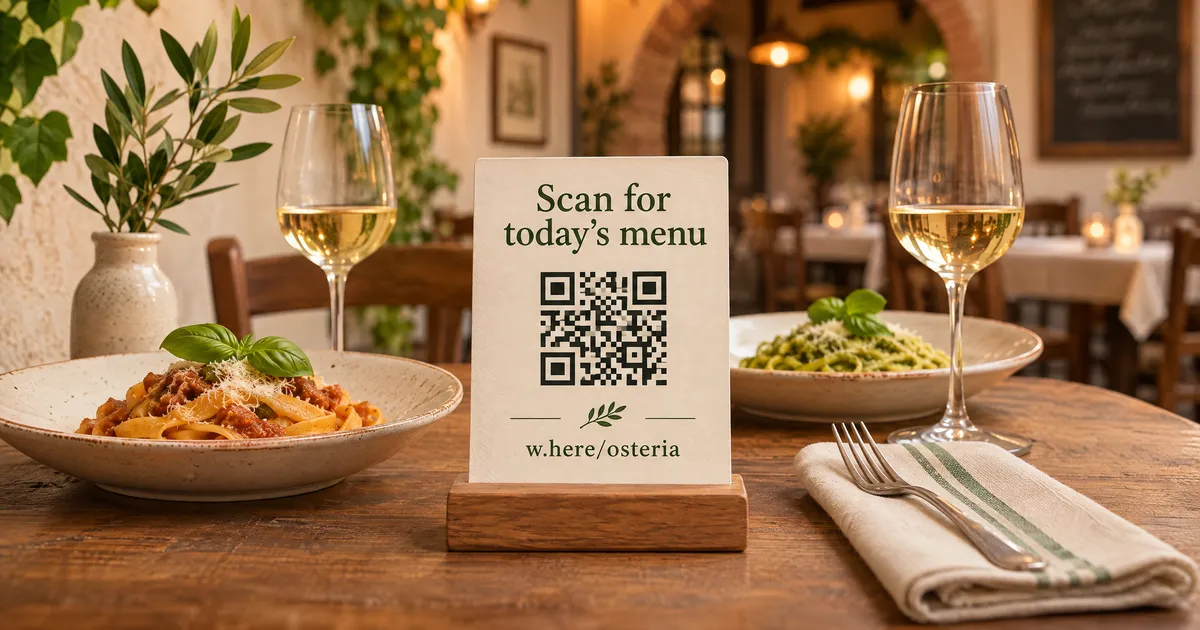
A menu page reached through a QR code can serve several needs in a clear order: readable dishes and prices first, a printable version if useful, and a separate link to ordering when the restaurant has an ordering service. Label each option so guests know whether they are reading, downloading or placing an order.
Compare the same menu, not two different designs
Consider a hypothetical café called Willow Room. It has eight breakfast items, six lunch items, three cakes and a short drinks list. Breakfast ends at 11 am, lunch begins at 11:30 am, and two dishes have optional additions.
Its original PDF uses two A4 pages. Breakfast and lunch appear in two columns, with prices aligned on the far right of each column. The second page contains drinks, cakes and service information. The same content could become a web page with four headings and individual dish blocks.
To make a fair comparison, retain the same names, descriptions, prices and hours. Do not give the web version clearer descriptions and then credit the format for the improvement. First compare equal content; then decide whether either version needs an editorial change.
Ask somebody to complete three tasks: find a lunch item, confirm its price with an addition, and check when lunch begins. Repeat with both versions on the same phone. Notice where they zoom, lose their place or switch between pages. Use those observations to identify which parts of each version need improvement.
Readability: follow one dish from name to price
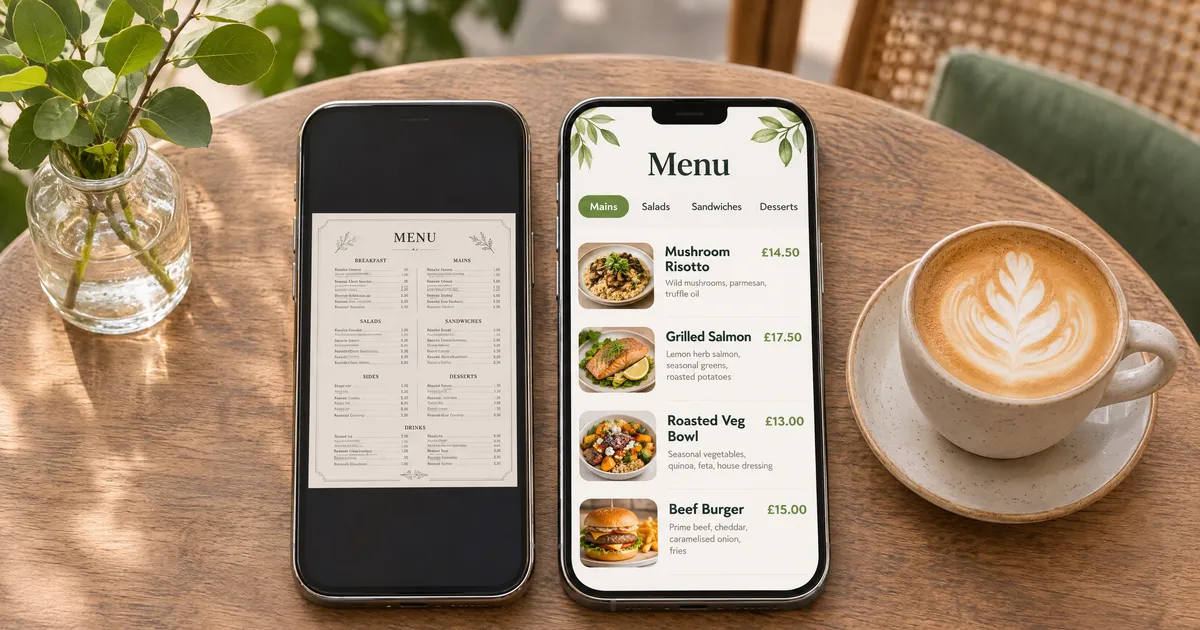
On a fixed PDF page, fitting the entire sheet onto a phone may make every element small. Enlarging it can make the words readable while pushing the price out of view. The reader may have to move sideways between the dish name and its cost.
For Willow Room, this is particularly awkward for a dish with two additions. A guest could read the description, pan to the price and then return to identify which additional price belongs to which choice. A single-column PDF could reduce this problem, even before changing formats.
On the web version, put the name and base price together, the description underneath, and the additions immediately after. Avoid a wide table unless the relationship genuinely requires one. More vertical scrolling can be preferable to repeatedly moving sideways to complete a single item.
W3C's Reflow explanation describes the accessibility goal of preserving information and functionality as content narrows or is enlarged, without two-dimensional scrolling for ordinary content. A web menu still needs checking against that goal; using HTML does not automatically achieve it.
For either format, inspect the smallest meaningful text. Service times, additions and qualifications should not become unreadable footnotes simply because the main dish names look comfortable.
Accessibility depends on the document's structure
A photograph or scan of a menu is an image of the page. It may look correct to somebody viewing it at a suitable size while giving assistive technology little usable structure. Exporting a design to PDF does not, by itself, establish that the result is accessible.
A PDF can contain real text, headings, document tags and an intentional reading order. Adobe recommends considering accessibility in the source document, carrying structure into the PDF and evaluating the result for problems. Automatic tagging may need correction, particularly with complex layouts. Adobe's accessible PDF workflow explains those stages.
For a menu, reading order is especially important. Imagine a screen reader announcing all the dish names before all the prices, or jumping across two unrelated columns. The words may exist in the file, but their relationships are difficult to follow. W3C's PDF reading-order technique describes checking logical order and testing it with suitable tools. It is a documented technique, not the only permitted way to meet accessibility requirements.
A web menu has corresponding responsibilities: meaningful headings, real text, sufficient contrast, understandable links and usable controls. Do not replace a PDF with the same menu screenshot embedded in a web page and assume the problem is solved. You have changed the container while keeping the same image-based information.
Updating: count every copy you must maintain
For Willow Room, the manager changes cake selections several times a week and reviews the main menu less often. Those two update patterns suggest different maintenance needs.
With a PDF workflow, an update might require editing the design file, exporting the document, checking it, uploading it and confirming that the public link opens the new version. That can be perfectly manageable if the responsible person already uses the design tool and follows the sequence reliably.
With a web menu, an update might mean editing one text entry, previewing and publishing. This can reduce the number of document-export steps, but it introduces its own responsibility: someone must have access to the page editor and know which version is live.
The larger problem is duplication. If the café has a web menu, a PDF, a takeaway menu and a social post with prices, changing one does not update the others automatically. Write down which copies exist and which person owns each one.
For the hypothetical café, a sensible choice is to keep changing cakes on the web menu and produce a separate, stable group-catering PDF only when there is a reason to download it. If the PDF is meant to reproduce the daily menu exactly, both versions must be part of every relevant update.
Loading: compare the actual page and file
A small text-based PDF can be lighter than a web page filled with large photographs and external widgets. Conversely, a photo-heavy PDF can take longer to retrieve than a straightforward page of text. File format alone does not decide loading behaviour.
Test from the printed code over mobile data. Observe what appears first and whether the guest can start reading while other material loads. Check whether the file opens in the browser, prompts a download or asks the person to choose another application. Device and browser behaviour can differ, so record what happened in your test rather than promising a universal experience.
Remove assets that do not help someone choose. If an image is useful, export it at an appropriate size and inspect the result. Do not reduce quality until prices or dish descriptions blur. Information should remain text wherever practical.
For a downloaded PDF, remember that the guest now has a copy. Updating the online file does not rewrite a document already saved to someone's phone. A visible version or menu date can help identify it, provided you keep the date accurate.
Printing and sharing can justify a PDF
A PDF is useful when a customer wants to print a set menu, forward a function package or compare options away from a browser. It can preserve page breaks and keep a multi-page proposal together.
That does not mean every table guest should begin by downloading it. You can provide a readable web menu and a secondary link labelled “Download the group menu — PDF”. If file size is useful to your audience, include the accurate size rather than an estimate you will forget to maintain.
Make the difference between versions explicit. “Group menu for advance bookings” is clearer than two competing buttons both called “Menu”. If one version is seasonal or available only by arrangement, say so before the person opens it.
A print-friendly web page is another possible route, depending on your publishing tool. Check an actual print preview rather than assuming it will remove navigation, preserve prices and avoid splitting items awkwardly across sheets.
Keep the printed QR code independent of file changes
If you print a QR code pointing to a file address that later disappears, the code still contains that old address. A new PDF with a different filename will not automatically repair the old route.
Use an address you can maintain. It can serve the current menu page or redirect to the current PDF. If you control a direct file URL, you may also be able to replace the file at that location or redirect it. The key is control of the encoded address, not whether the generator called the code static or dynamic.
For a hosted menu or redirect service, check how you will keep the shared address active and what happens if you leave. If the address depends on a subscription, assign responsibility for renewal. Keep a copy of the menu text and current PDF so another staff member can restore the destination if the usual maintainer is unavailable.
The updatable QR menu guide covers the full connection between address, print and staff workflow.
Use this decision checklist before changing formats
Choose a primary format by answering these questions with the people who will maintain it:
- Can a guest read a complete dish and its price comfortably on a phone?
- Can they enlarge the information without losing its relationships?
- Does the menu have a sensible reading order and meaningful structure?
- Can staff make a routine change without depending on an unavailable designer?
- Is there a clear reason for guests to download or print a document?
- How many versions contain the same prices, and who keeps them aligned?
- Does the printed address remain usable if the current file or page moves?
- Is another way to read the menu available when scanning is inconvenient?
If the current PDF performs well in your checks and the team maintains it reliably, keep it while improving any specific weaknesses. If guests repeatedly zoom and pan or staff struggle with frequent exports, build a simple web version from the same source content and test it alongside the PDF.
Start with one complete category, including its prices, additions and service time. Review that category on phones before converting the entire menu. The mobile-friendly page guide gives more checks to use as you expand. The right final choice is the version your guests can read and your team can keep correct.