Build a professional email signature with one link
Create a concise email signature with one useful website link, clear contact details and a destination that works for new enquiries and mobile readers.
The w.here team
9 min read
On this page
- Decide what the signature needs to do
- Pick the destination before designing the signature
- Write a small amount of useful text
- Make the link promise match the landing page
- Use formatting that survives ordinary email
- Add it to the email tools you actually use
- Test a real message from the recipient's side
- Plan for the emails you cannot edit later
- A final edit before you make it the default
A professional email signature with one link needs your name, a useful description of your role and a clearly labelled destination that helps the recipient take the next step. Put the longer biography, portfolio, booking options and social profiles on that destination page. Keep essential contact information in the email itself when it helps someone reply or call.
“One link” is a useful design choice, not a rule that overrides your business needs. A required company notice or direct phone number may still belong in the signature. The aim is to give the reader a clear route forward without turning every message into a navigation menu.
Decide what the signature needs to do
Look at the kinds of messages you send most often. A freelancer introducing their work needs a different destination from a salon confirming a booking. An existing client may only need your direct details, while someone receiving a forwarded email may need to understand who you are.
Write down the common question your signature should answer. It could be “Where can I see relevant work?”, “How do I find the shop?”, or “Where can I learn about your services?” The linked page should answer that question without asking the recipient to search a large site.
Avoid choosing a destination solely because it is the newest thing you published. A temporary campaign may deserve a line in a specific message rather than a permanent place in every signature. If you do use a campaign link, decide now who will remove or replace it when the campaign ends.
Consider creating a short reply signature as well as an introductory version. A long email chain does not always need the same introduction repeated beneath every response. The recipient should be able to find the conversation without scrolling through several copies of a large footer.
Pick the destination before designing the signature
There are three common choices: a contact page, a portfolio or services page, and a specific action page. None is universally better. Choose the one that matches the range of people who will receive your emails.
| Destination | A good fit when | Check before using it |
|---|---|---|
| Digital business card | Recipients need a quick introduction and contact options | It explains your role and provides a direct route to contact you |
| Portfolio or services page | People need evidence or details before enquiring | Relevant work appears without a long search |
| Booking page | Most emails lead to a particular appointment | The service, location and booking process are clear |
| General homepage | Your homepage already makes the next step obvious | It does not bury the relevant information behind unrelated navigation |
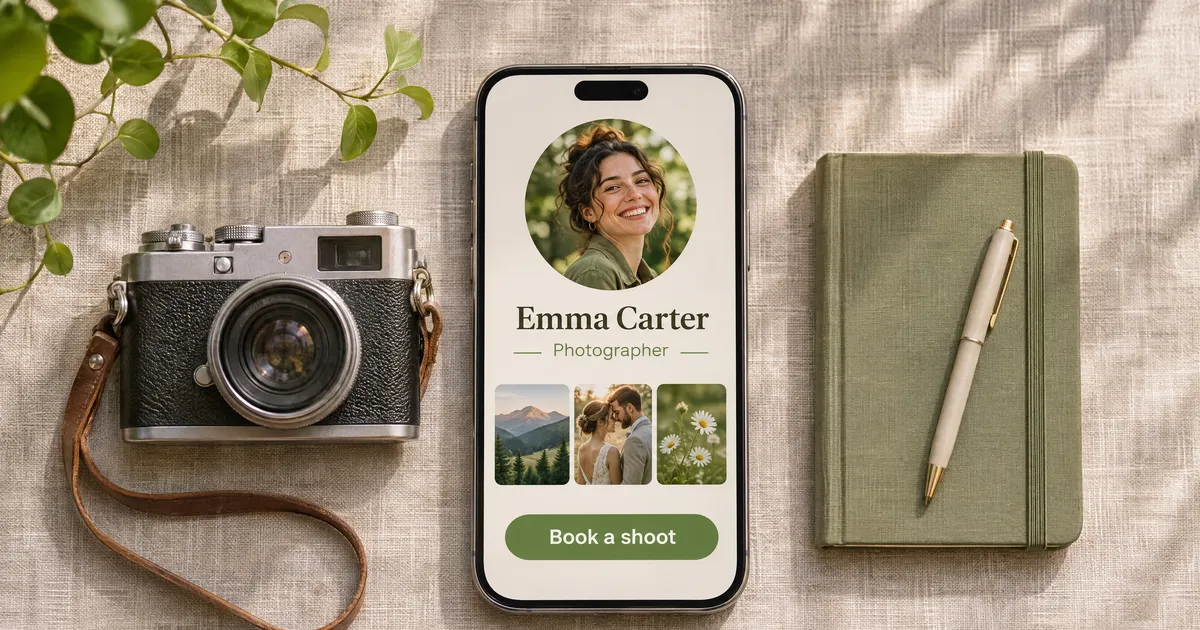
A digital business card page can work for mixed audiences because it lets people choose between work examples, contact details and another relevant action. A direct booking link removes that intermediate choice, which is helpful when booking is clearly the purpose of the exchange.
If you work across several distinct services, do not automatically send everyone to your most profitable offer. A recipient who wrote about tutoring should not land on an unrelated consulting calendar. You can use separate signatures for distinct roles or choose a neutral page that explains both.
Write a small amount of useful text
Start with your name on its own line. Follow with your role and business if those details help identify you. Add a phone number, city or working hours only when recipients benefit from seeing them without opening a website.
Your role line should be understandable outside your industry. “Brand designer for independent retailers” is more useful than a string of internal titles. If the business name already explains the work, you may not need another sentence repeating it.
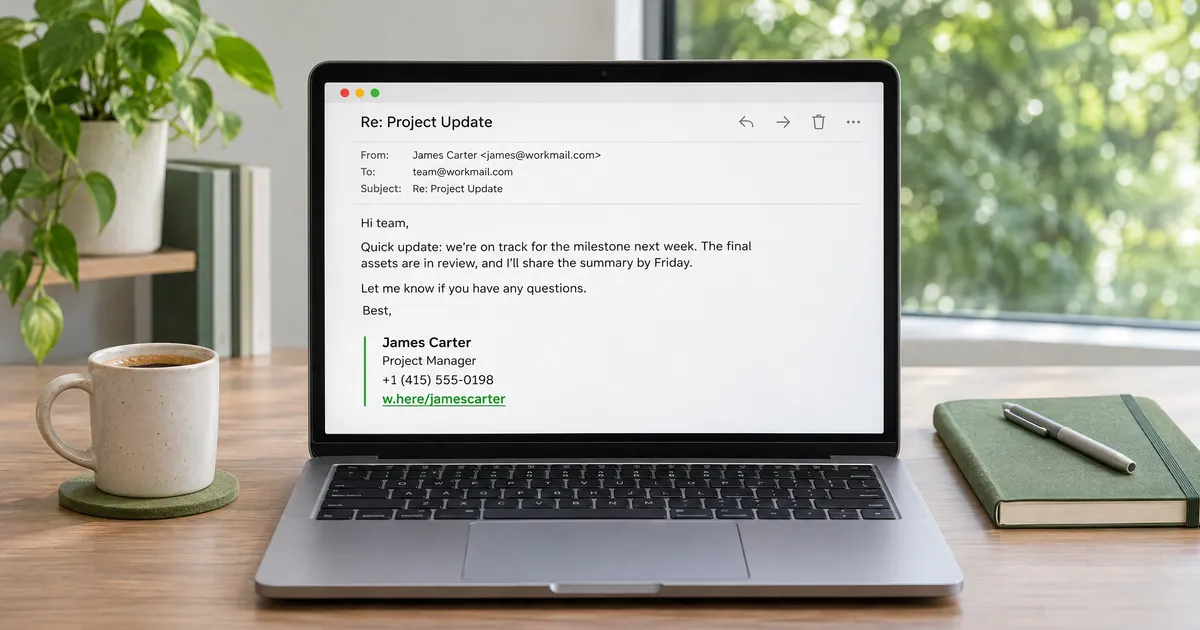
Here is an illustrative signature for a fictional illustrator. The final line is the text that would carry the one website link:
Riley Morgan
Editorial and publishing illustrator
Selected work and contact details
For a hypothetical local repair business, the signature might instead read:
Sam Patel
Owner, Harbour Bicycle Repairs
Workshop hours and booking information
These are wording examples, not real businesses or contact details. In your email editor, attach the full HTTPS destination to the descriptive final line. The signature then tells the reader both who is writing and what the link will provide.
You do not need to repeat your email address just because templates often include one. The recipient can usually reply to the message. Include it when a forwarded or printed version would benefit from having that address explicitly visible, or when the reply address differs from the right business contact.
Make the link promise match the landing page
“Find out more” leaves the reader to guess what more means. “View wedding photography” or “Services and availability” gives a clearer expectation. Choose a label broad enough to remain accurate as the page evolves, while still describing something useful.
If the link opens a calendar, say so. If it opens a PDF, identify the document rather than making it look like a normal web page. If the page requires an account, consider whether that is a sensible destination for a general signature at all.
W3C's accessible writing guidance recommends meaningful link text that describes the destination. That principle is useful here: the label should carry information even when the surrounding email is unfamiliar or the reader moves directly between links.
Avoid making the visible text look like one domain while linking it to an unrelated address. Descriptive wording can be clearer than displaying a long URL, but it should not disguise the destination. When a recognisable short address is part of your professional identity, displaying it can also make copying and sharing straightforward.
Use formatting that survives ordinary email
Build the signature from real text and a real hyperlink. Keep it readable with the email client's normal font settings before adding decoration. If a logo helps recognition, it should support the text rather than replace your name, role and contact information.
Do not make the whole signature a single image. Recipients may have images turned off, and someone may want to select a phone number or copy your name. A beautiful image in your editor is not enough evidence that the signature will remain useful in the recipient's environment.
Avoid complex columns, tiny social icons and long lines separated by many vertical bars. They can be awkward on a narrow screen, especially when the email has been quoted or forwarded. A simple vertical arrangement gives you less to repair across different clients.
Keep colour changes restrained. A faint grey role line may look elegant on your display but become difficult to read elsewhere. Check the signature in both light and dark appearances where available, and make sure linked text still looks recognisably clickable.
Do not add a QR code by default. A recipient already reading your email can click a link. A QR code may have a specific use if the message will be printed or shown on another screen, but it should earn its space rather than repeat the same action in a larger form.
Add it to the email tools you actually use
Create the signature in the relevant email client's signature settings, then choose when it should appear. Do this for each account or sending identity you use. A personal account, a business account and a shared mailbox should not accidentally inherit the same details.
In Gmail on a computer, Google's current instructions use Settings, then See all settings, and the Signature section. Gmail supports different signatures and defaults for new messages and replies. Follow the official Gmail signature instructions for the settings available in your account.
For Outlook.com and Outlook on the web, Microsoft's instructions point to Settings, Accounts and Signatures, where you can choose inclusion for new messages and replies or forwards. See Microsoft's signature setup guidance; other Outlook versions can use different menus.
After saving, compose a new message and a reply. Check that you have not left an old automatically appended signature beneath the new one. If you send mail from a mobile app too, inspect a message sent from that app instead of assuming the desktop result applies everywhere.
The setup is complete only when a received message looks correct. Your own compose window can show formatting that changes during delivery or quoting.
Test a real message from the recipient's side
Send a short test email to an account you can inspect in a different email environment. If possible, ask a colleague to check it on a phone. Record the combinations you tried rather than describing the signature as universally tested.
Check that the name is readable, the role line does not wrap confusingly, and the link is easy to activate. Open the link while signed out of your website editor. A destination that works for you because you are logged in may still fail for a recipient.
Forward the message once and reply to it once. Look for duplicated signatures, oversized gaps, broken images and lines that become difficult to follow in quoted text. Turn off remote images if the client allows it and confirm that the essential information remains available.
Try copying the contact details into a note. This simple action catches image-only text and unusual formatting. If your signature contains a phone number, check the displayed number and any attached calling link separately; they can disagree after a partial edit.
Also test the destination's main action. A signature link opening correctly is only the first step. The recipient still needs to see the intended portfolio, booking details or contact option.
Plan for the emails you cannot edit later
Once an email has been sent, changing your signature settings does not rewrite that message. People may open an old conversation months later or forward it to someone new. A stable destination address can make those older signatures useful for longer.
That stability comes from maintaining the address and its destination. If you control the page, you can update the information there. If you control a redirect, you may be able to send visitors to a new page. If the original address belongs to a service you leave and cannot redirect, you cannot assume the old messages will follow you.
With w.here, a subscribed address can show a page or redirect to an HTTPS destination, so a signature can continue using the same address when the content or target changes. It is a yearly service subscription, with continuing availability dependent on the subscription and service; it is not an email provider or a separately owned domain.
For the naming decision, see how to choose a memorable personal website address. For the content behind the link, use the digital business card content guide to select the details that belong there.
A final edit before you make it the default
Use this checklist on the received test message:
- The sender's name and business relationship are clear.
- The website link has a useful label and opens the correct public page.
- Direct contact details are accurate and intentional.
- Essential information remains readable without images.
- The signature fits a phone screen without awkward sideways scrolling.
- New messages, replies and mobile messages use the intended version.
- Temporary offers have a named owner and an end date.
- The destination address has a maintenance and renewal plan.
Start with the text-only version and send the test today. Add visual details only after the words, destination and delivered message work together. The signature should make it easy for a recipient to continue a useful conversation.