Create an Event Landing Page That Stays Useful
Create an event landing page with clear dates, tickets, directions and updates, then adapt it for arrival, the event itself and useful follow-up.
The w.here team
9 min read
On this page
- Start with the five facts someone needs to decide
- Write dates and times so they cannot be misread
- Explain the event before asking for a commitment
- Make ticket and registration links precise
- Give directions that work at the point of arrival
- Publish specific access information
- A worked example: a community repair workshop
- Assign ownership to updates before they are needed
- Keep one address while the page's priorities change
- Run a rehearsal through the public page
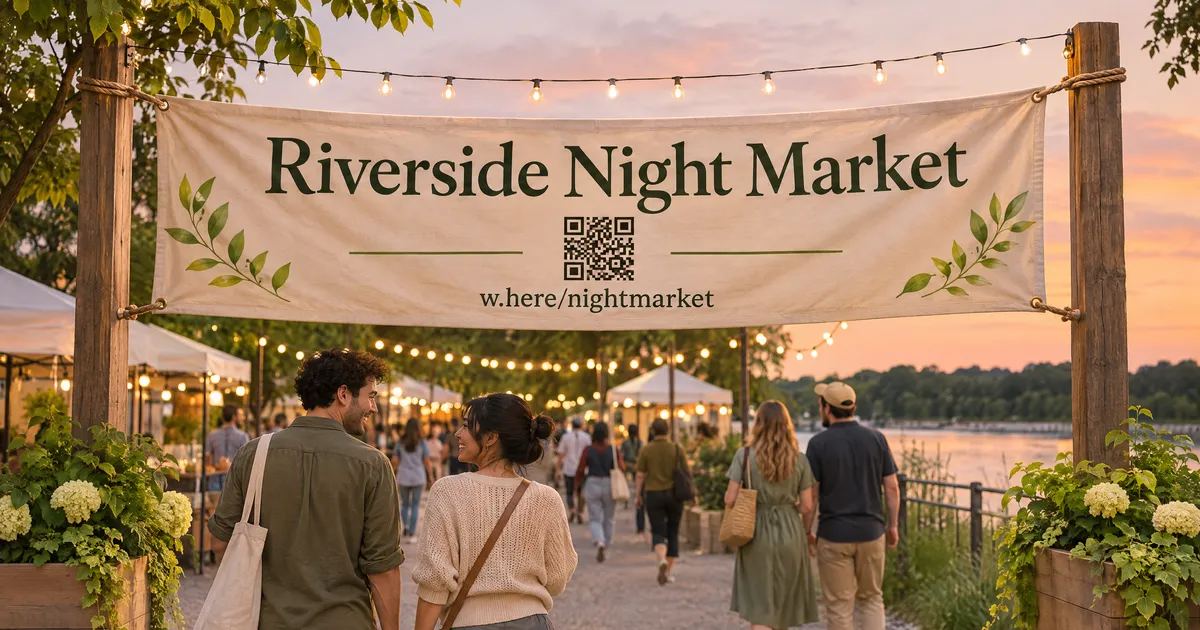
An event landing page should tell people what is happening, when and where it happens, and how to take part. Keep one dependable address for those details, then update the page as the event moves from registration to arrival, live information and follow-up.
The page is a shared reference point. It should agree with the ticket provider, confirmation messages, venue information and printed material rather than becoming another competing version of the plan.
Start with the five facts someone needs to decide
Before choosing photographs or writing a long introduction, prepare five facts: the event's name, its purpose, its date and time, its location, and the action required to attend. Add who it is intended for when that is not obvious.
A visitor should be able to distinguish a public drop-in event from a booked workshop, a paid performance or an online session. “Join us for an evening of creativity” is not enough if attendees need to bring materials, buy a ticket or meet an age requirement.
Use a short opening paragraph followed by the essential details. Put fuller programme information below. If the event has a clear capacity limit, registration deadline or participation condition, describe the actual arrangement without inventing urgency.
For a business running a workshop, launch or open day, identify the organiser alongside the event title. Then describe this particular occasion: what is different from an ordinary visit, whether people need to reserve a place, and who will welcome them. A generic business introduction leaves those decisions unanswered.
Write dates and times so they cannot be misread
Use a written month and include the year, particularly when posters or links may remain visible afterwards. Numeric dates can mean different things to different readers. Check that the weekday agrees with the chosen date before publishing.
Distinguish doors opening, programme start and finish. A person arriving for “6 pm” should not have to guess whether that is when registration opens or the first speaker begins. If the finish is approximate, label it as an estimate.
For online or geographically dispersed audiences, state the event's time zone and the location it refers to. Do not assume everyone viewing the page shares the organiser's clock. If you offer an add-to-calendar link or file, test that it saves the correct start, end and location.
Google Calendar supports assigning a time zone to an event and displays events according to the viewer's time zone. Its documentation also notes that time-zone changes can affect events. Google's time-zone guidance is a useful reason to verify the saved event, rather than relying solely on the text displayed on your page.
For a multi-day event, show each day's relevant times. A single date range is insufficient if the opening evening, full programme day and closing day use different hours.
Explain the event before asking for a commitment
Describe what an attendee will actually do or see. For a workshop, explain the activity, approximate format, included materials and anything participants need to bring. For a performance, identify the programme and relevant entry conditions. For an open day, explain whether people can arrive at any time within the advertised window.
Use real names and confirmed details for speakers, performers and hosts. If a part of the programme is genuinely unconfirmed, do not present it as settled. Either leave it out until it is ready or state the current position plainly.
A short schedule can help people plan, but only publish a level of detail you can maintain. Four accurate session blocks are more useful than a minute-by-minute programme that changes without updates.
Separate the main audience decision from supporting background. A short organiser introduction may establish context. A long history of the organisation should not push the date, access information and ticket route several screens down the page.
Make ticket and registration links precise
The main action should describe what happens next: “Reserve a workshop place”, “Buy tickets” or “Register for the online session”. These are different commitments. Avoid “Join now” when it leads to a mailing list rather than event registration.
If the action opens an external provider, say so briefly where useful. Verify that the link opens the correct event, date and venue while you are signed out of the organiser account. An editing dashboard URL is not a public registration link.
Show accurate pricing information and clarify relevant options. If the total is calculated by the ticket system, make sure the page does not promise a conflicting total. Do not call an event free if required charges appear later without explanation.
The provider should remain the source for ticket inventory, purchases, confirmations and any refund process it manages. A landing page that simply links to it does not independently know whether a purchase succeeded. Similarly, a waiting-list form is not a confirmed place; label the difference.
If you change provider, test the new link and review other places the old one appears. The call-to-action guide can help you keep the wording aligned with each destination.
Give directions that work at the point of arrival
Provide the venue name and full practical address, then link to the correct map location. Check the map pin instead of assuming a business-name search will identify the entrance attendees need.
Include the entrance, room, floor or gate when these are easy to confuse. A large campus, shared building or park may have several possible arrival points. A concise instruction such as “Use the courtyard entrance beside reception” can be more useful than a broad location label.
Add verified public-transport, parking or drop-off information when it helps your audience. Avoid guessing about spaces, fees or late-night services. If those details are maintained by the venue or transport operator, link to the authoritative information and review it near the event.
For an online event, distinguish the public information page from the joining link. Explain when registered participants will receive joining instructions. Do not publish a private attendee-only link on a public page merely because it is convenient for the organiser.
Publish specific access information
Explain the practical access arrangements you have checked. Depending on the event, that might include step-free entry, accessible facilities, seating arrangements, captioning or a contact route for access requests. Be precise about the location and limits of an arrangement.
W3C's accessible events checklist encourages organisers to consider both venue and remote-platform accessibility, provide access information and plan relevant support. A page should communicate the arrangements you have actually made, not substitute a broad “accessible to everyone” statement for that work.
Give attendees a way to ask about needs the page does not address. If arrangements require advance notice, state the actual process and timing. Keep the contact route monitored as the event approaches.
Also make the page itself readable. Put essential information in text rather than only on an event poster. A poster image can support the design, but the date, location, ticket instructions and programme should remain available as ordinary page content.
A worked example: a community repair workshop
Imagine a hypothetical community repair workshop running on a Saturday afternoon. There are two sessions, each with a limited number of places, and attendees must register for one session. The organisers use an external registration provider and a local community hall.
The page opens with the activity, the full event date and the hall name. Two clearly labelled session links lead to the corresponding provider choices. The text explains what kinds of items the workshop can consider, what attendees should bring and what the organisers cannot promise to repair.
Below that, arrival information identifies the side entrance and the room inside the hall. Access details describe the checked route and provide an organiser contact. A short schedule explains check-in and the expected session finish.
A week before the event, the first session fills. The organisers update its action to reflect the actual provider status while leaving the second session available. On the day, a notice near the top explains a changed entrance caused by unrelated building work, and the organisers use their established attendee communication channel to notify registered people.
Afterwards, the page says the event has ended and links to relevant repair resources. A future-event interest form is labelled as such, rather than leaving a “Book a place” button pointing at an expired session.
Assign ownership to updates before they are needed
Choose one person who can approve changes and at least one person who can publish them when necessary. Record which account controls the page and how the event team accesses it. A critical update should not depend on finding an unavailable volunteer's personal login.
Maintain a short record of the authoritative details: date, times, venue, ticket destination, programme and organiser contact. When one changes, identify the other places that need updating, including confirmation messages, calendar entries and venue signs.
A practical change sequence is:
- Confirm the new detail with the responsible organiser.
- Update the authoritative record and the landing page.
- Check the public page on a phone.
- Update the ticket provider and calendar information where applicable.
- Notify registered attendees through the established event process when the change affects them.
- Check printed signs and other published routes that may now mislead people.
Editing a page does not guarantee that everyone will revisit it. A material venue or time change needs the communication process your event uses, alongside the corrected public information.
Keep one address while the page's priorities change
Before the event, registration may be the most important action. During arrival, directions and practical instructions become more useful. After the event, an ended notice and relevant resources can replace expired ticket links.
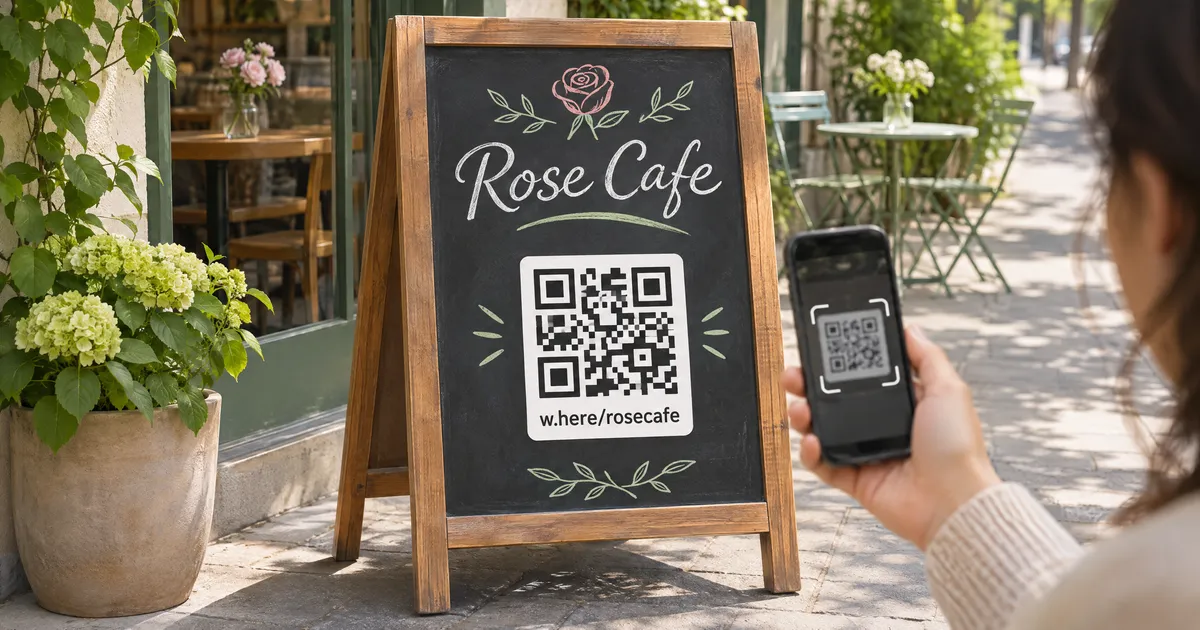
Keeping a maintained address lets old messages and printed codes continue to reach a useful page. The guide to changing a QR destination after printing explains how that arrangement works. The printed QR code still contains the same address; the content or redirect behind that address changes.
Before printing, check who controls the address and how long it will remain available. Hosting, domain and redirect subscriptions may have different renewal dates. Keep any required service active for as long as old invitations need to work, and retain account access for the person responsible for updates. Ticket sales, registration and payments remain with whichever provider actually processes them.
Avoid silently turning an old event page into a different year's event while old details remain elsewhere. Clearly identify the new edition and retain enough context that someone following an old invitation understands what happened.
Run a rehearsal through the public page
Before sharing widely, ask someone outside the organising team to use the published page and answer these questions:
- What is the event, and is it suitable for them?
- Which date and session would they attend?
- What does it cost, and what does registration confirm?
- Where exactly should they arrive or find joining instructions?
- What should they bring or prepare?
- How can they check access arrangements or contact the organiser?
- What happens after they press the main button?
Follow the registration journey yourself, using a test mode or a controlled test where the provider supports it. Confirm that the resulting details agree with the landing page. Check the page on a phone, including enlarged text, using the mobile-friendly page guide.
Schedule one final content review before the event and one update afterwards. That small commitment keeps the page useful for people arriving on the day and for those who discover the link after the event is over.